

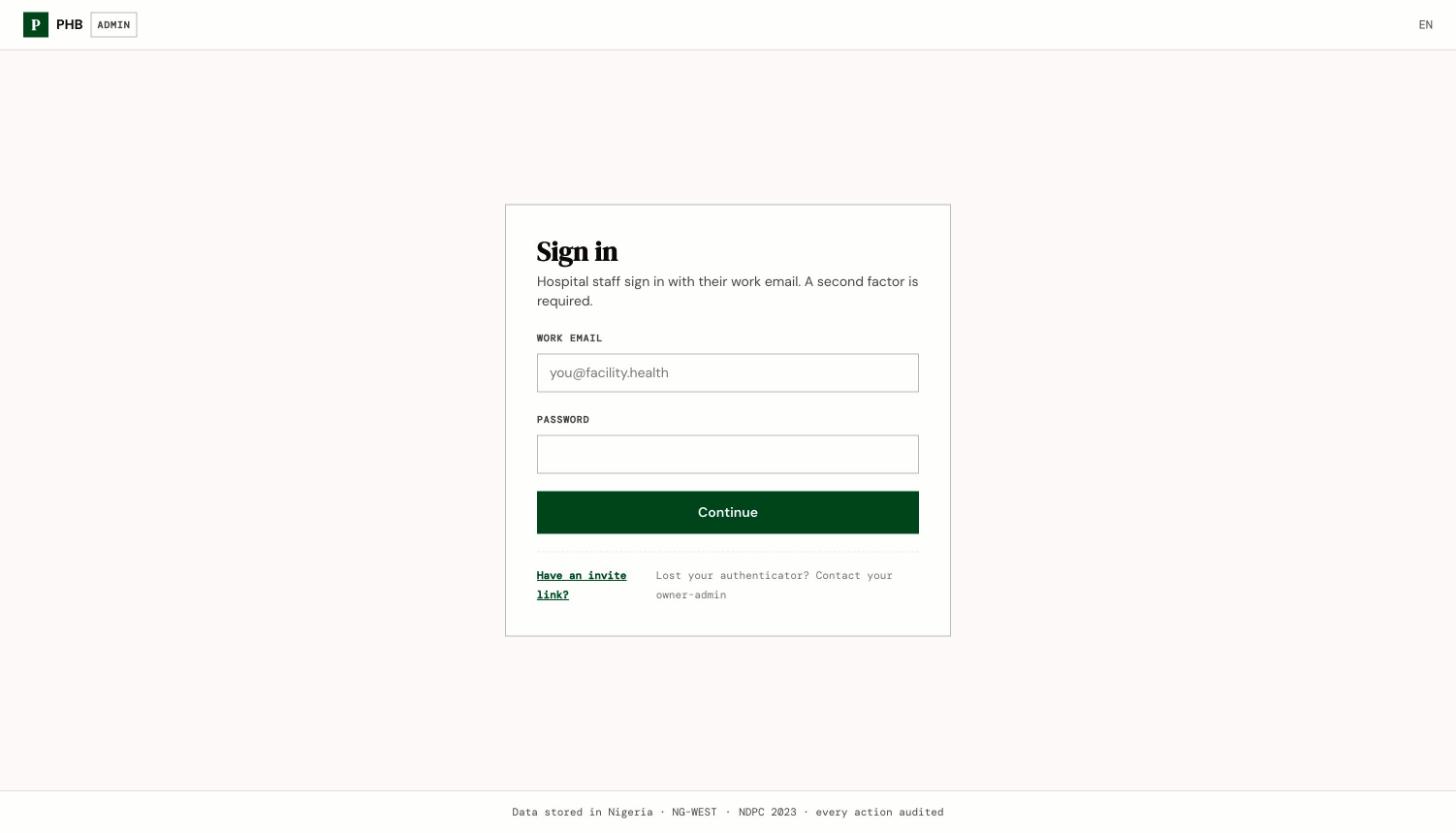
The hospital staff sign-in page at /hospital/login.
Before you start
You need:- An account. Your facility’s owner or admin invites you. See Accept a staff invite.
- Your work email and the password you chose.
- An authenticator app on your phone, such as Google Authenticator or Microsoft Authenticator.
Which sign-in page is yours
Steps
1
Open your sign-in page
Go to the address in the table above.
2
Enter your work email and password
Type the email your invite was sent to and the password you chose.
3
Enter your authenticator code
The first time, you see Set up your authenticator. Scan the code on screen with your authenticator app. After that, you see Enter your code. Type the 6-digit code from the app and click Verify & sign in.
4
Choose a facility if asked
If you work at more than one facility, PHB asks you to choose one. See Choose a facility.
What you can do here
- Sign in to your own workspace.
- Change your password once signed in. Doctors use Settings. Nurses and lab scientists use Account.