

Before you start
You need the rolepharmacist, PCN verification, and the patient’s HPN or phone number.
Steps
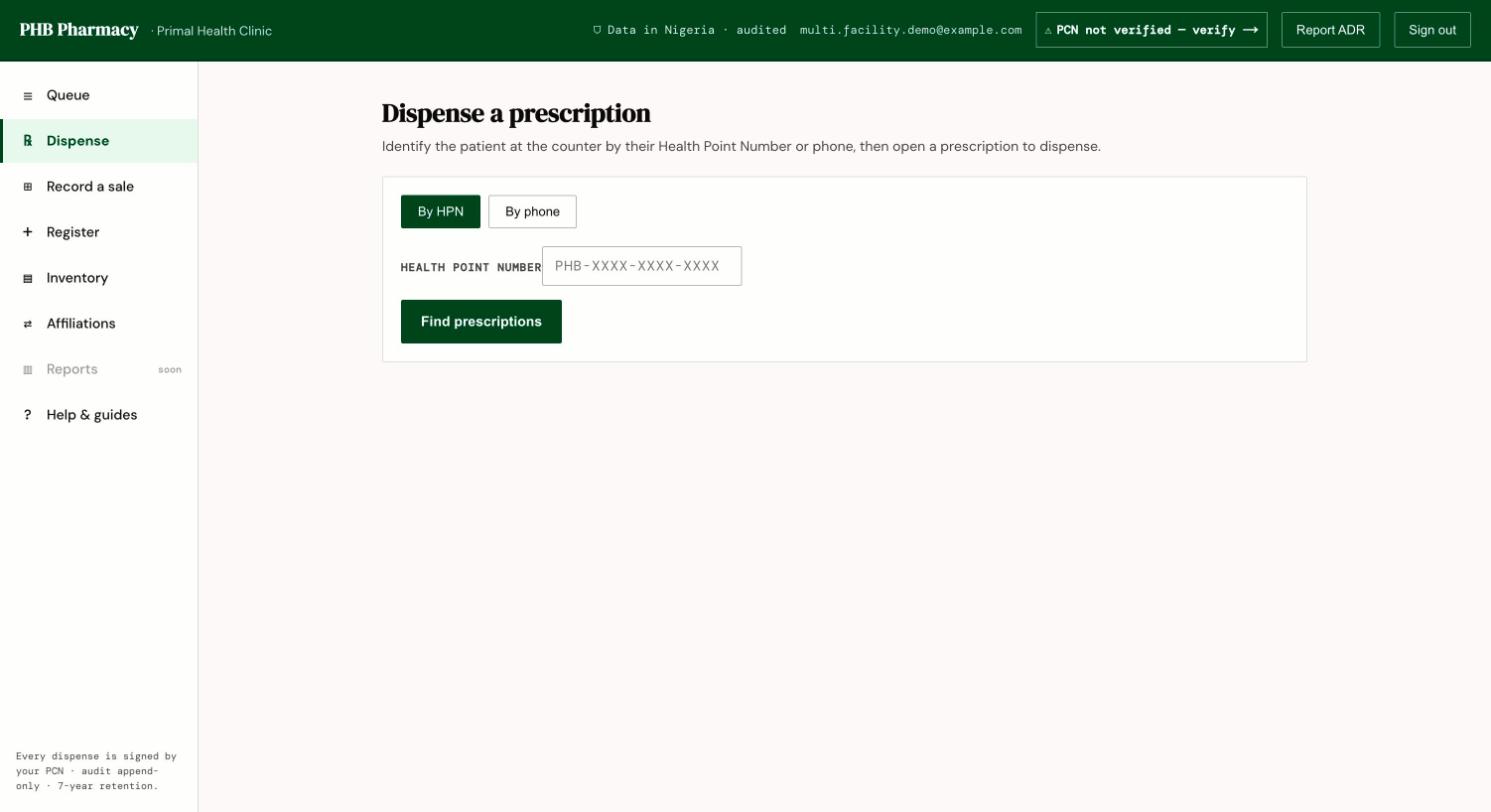
Dispense: identify the patient by HPN or phone, then open a prescription.
1
Find the prescriptions
Open Dispense. Under Dispense a prescription, choose By HPN or By phone, then click Find prescriptions. You can also start from the Queue.
2
Confirm who is collecting
Under Patient verification, check the person in front of you. Tick Name matches the person collecting, and Date of birth matches if a date of birth is on file.
3
Check the items
Review Items to dispense. Read any allergy warning: Recorded allergy — check before dispensing. If you dispense despite an allergy, give an override reason.
4
Substitute if needed
If the drug is out of stock and substitution is allowed, click Find a generic / substitute and choose a same-class option. Give a reason.
5
Counsel
Tick I counselled the patient on how to take these medications. Add a Counselling note if useful.
6
Payment
Under Payment, choose how the Patient pays.
7
Dispense
Click Counsel + dispense, or Counsel + dispense (partial) if you give part now. The status changes to Dispensed or Partially dispensed. The patient is notified.
What you can do here
- Dispense in full or in part.
- Substitute within the same drug class.
- Flag out of stock. PHB then shows Where to send them: affiliated pharmacies that stock it. You see The patient has been notified to get this elsewhere.
- Wallet payments are taken at the moment you dispense.
Rules to know
- Dispense events can’t be edited or deleted.
- A free-text item that isn’t in the drug list is not allergy-checked. Check it yourself.
The interaction check is switched off, pending clinical sign-off. NAFDAC checks and NHIA claims are recorded but not checked electronically yet.