> ## Documentation Index
> Fetch the complete documentation index at: https://docs.phbhealth.com/llms.txt
> Use this file to discover all available pages before exploring further.
# Pharmacist
> Your guide as a pharmacist: what you need first, how to sign in, and your pharmacy workspace.
This guide is for staff with the role `pharmacist`, at a hospital pharmacy or an independent pharmacy on PHB.
## Before you start
You need:
* [ ] An invite with the role `pharmacist`. A hospital pharmacy's pharmacists are invited by the hospital's owner or admin. An independent pharmacy is set up by PHB after its application. See [Independent pharmacy application](/guides/pharmacist/independent-pharmacy-application).
* [ ] Your work email, password and authenticator app.
* [ ] **PCN verification**. Dispensing requires a PCN-verified pharmacist working at a PCN-verified pharmacy. See [PCN verification](/guides/pharmacist/pcn-verification).
## Sign in
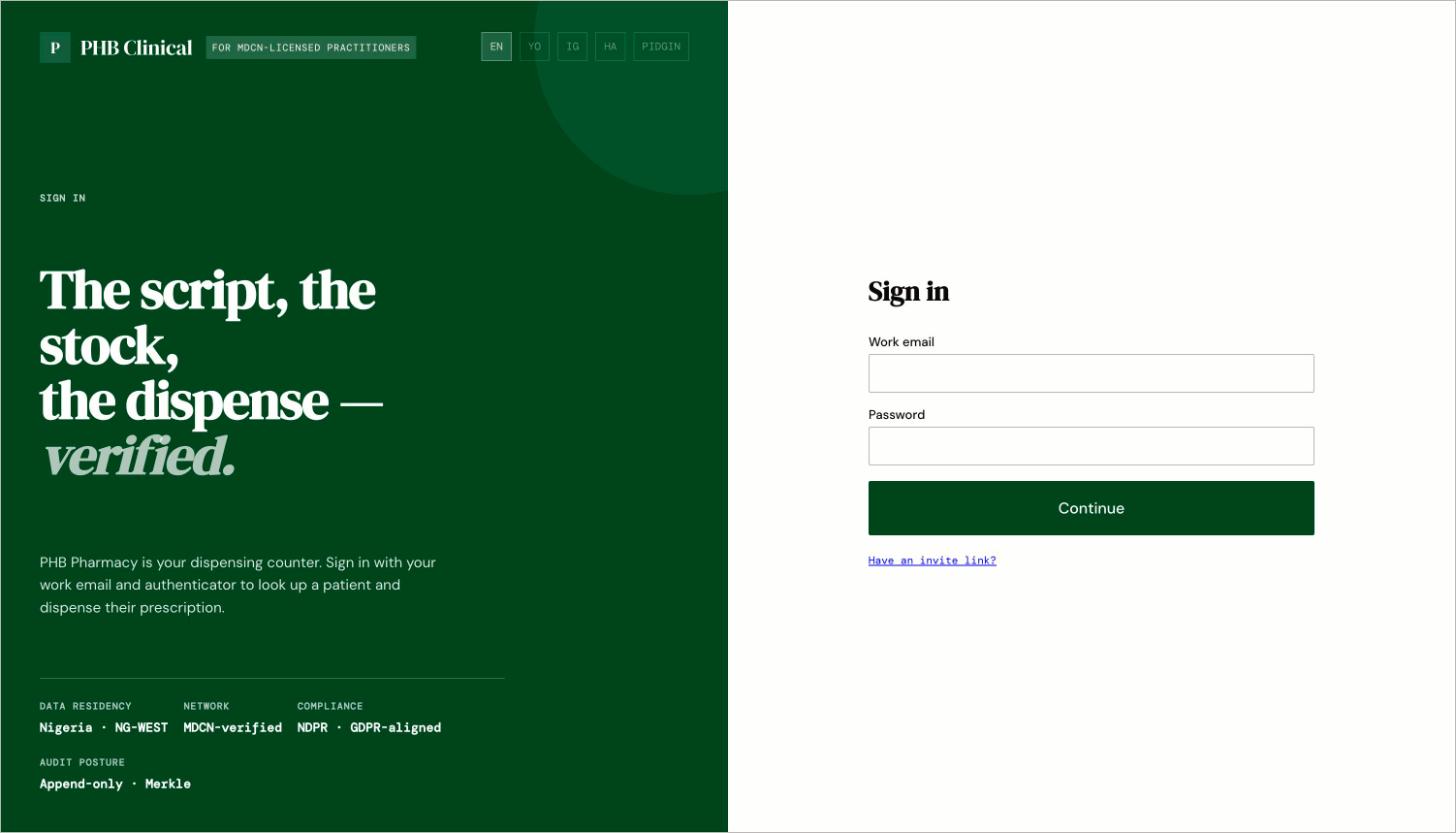 1. Go to `/pharmacy/login`. Enter your work email and password, then your authenticator code.
2. You land on `/pharmacy`.
If you hold the role at more than one pharmacy, PHB opens the first one. There is no picker yet.
## Your screen
1. Go to `/pharmacy/login`. Enter your work email and password, then your authenticator code.
2. You land on `/pharmacy`.
If you hold the role at more than one pharmacy, PHB opens the first one. There is no picker yet.
## Your screen
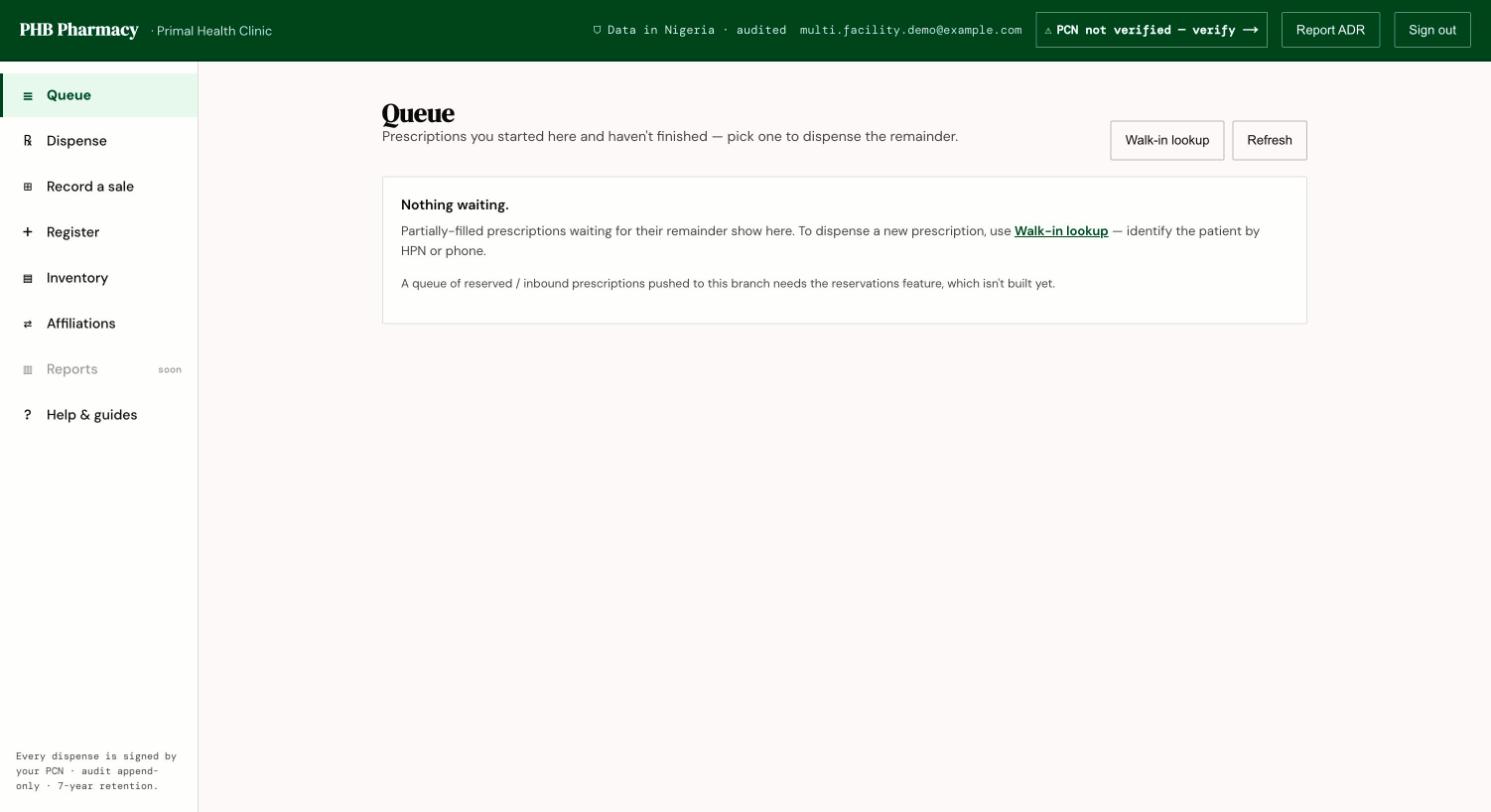 The left menu has **Queue**, **Dispense**, **Record a sale**, **Register**, **Inventory** and **Affiliations**. **Reports** is coming soon.
The header has **Report ADR** to report an adverse drug reaction, and a **Help & guides** link.
## What you can do here
Find, check, counsel and dispense.
Over-the-counter and outside prescriptions.
Give a patient an HPN at the counter.
Verify your PCN licence.
## When something goes wrong
* [Why can't I...?](/troubleshooting/why-cant-i)
* [Feature status](/reference/feature-status)
* In the app, open **Help & guides** for the pharmacist walk-throughs.
This documentation is built and hosted on [Mintlify](https://mintlify.com), a developer documentation platform.
The left menu has **Queue**, **Dispense**, **Record a sale**, **Register**, **Inventory** and **Affiliations**. **Reports** is coming soon.
The header has **Report ADR** to report an adverse drug reaction, and a **Help & guides** link.
## What you can do here
Find, check, counsel and dispense.
Over-the-counter and outside prescriptions.
Give a patient an HPN at the counter.
Verify your PCN licence.
## When something goes wrong
* [Why can't I...?](/troubleshooting/why-cant-i)
* [Feature status](/reference/feature-status)
* In the app, open **Help & guides** for the pharmacist walk-throughs.
This documentation is built and hosted on [Mintlify](https://mintlify.com), a developer documentation platform.