> ## Documentation Index
> Fetch the complete documentation index at: https://docs.phbhealth.com/llms.txt
> Use this file to discover all available pages before exploring further.
# Dispense a prescription
> Find a patient's prescriptions, confirm who is collecting, check allergies, counsel and dispense.
## Before you start
You need the role `pharmacist`, PCN verification, and the patient's HPN or phone number.
## Steps
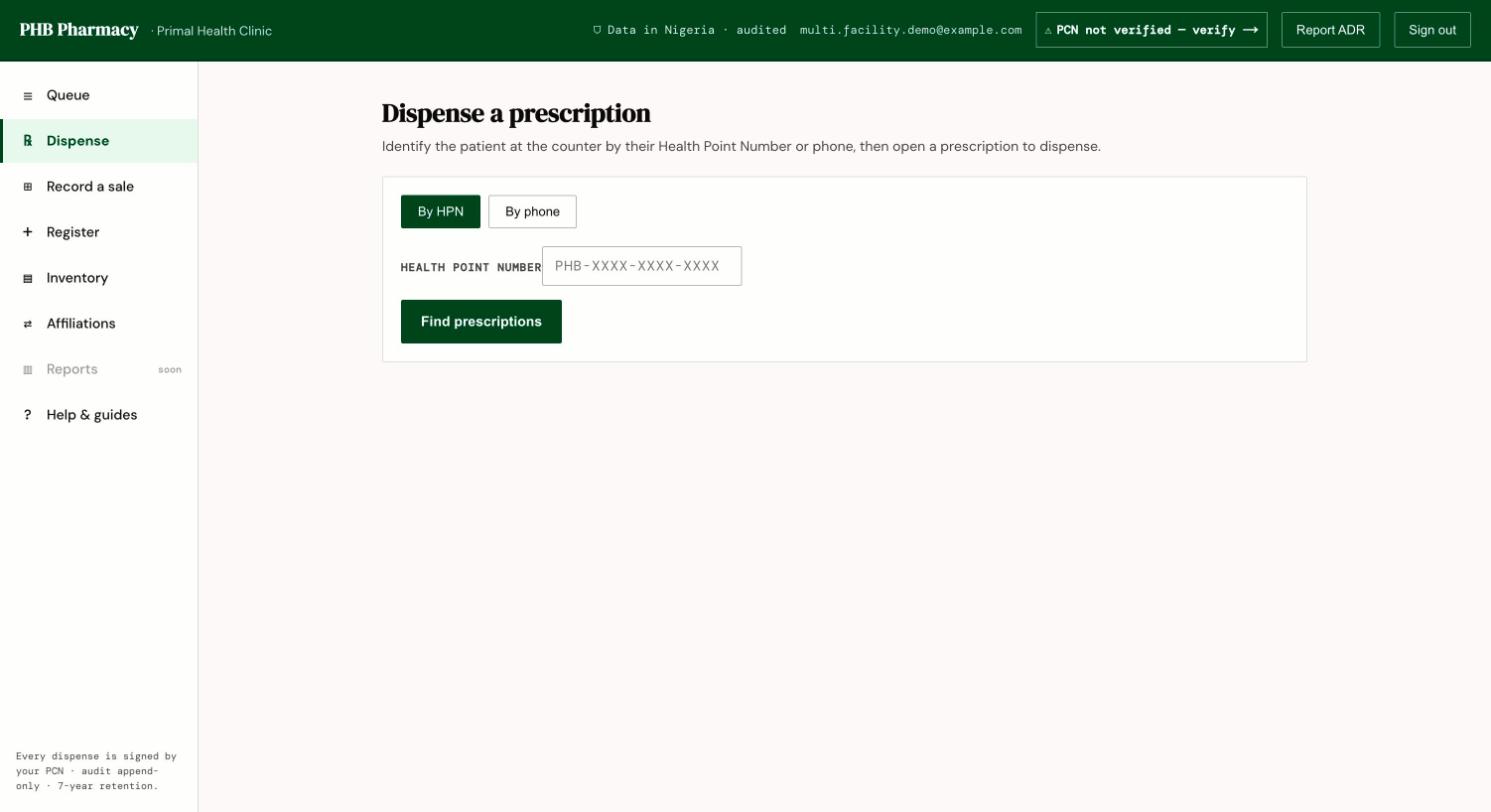 Open **Dispense**. Under **Dispense a prescription**, choose **By HPN** or **By phone**, then click **Find prescriptions**. You can also start from the **Queue**.
Under **Patient verification**, check the person in front of you. Tick **Name matches the person collecting**, and **Date of birth matches** if a date of birth is on file.
Review **Items to dispense**. Read any allergy warning: **Recorded allergy — check before dispensing.** If you dispense despite an allergy, give an override reason.
If the drug is out of stock and substitution is allowed, click **Find a generic / substitute** and choose a same-class option. Give a reason.
Tick **I counselled the patient on how to take these medications.** Add a **Counselling note** if useful.
Under **Payment**, choose how the **Patient pays**.
Click **Counsel + dispense**, or **Counsel + dispense (partial)** if you give part now. The status changes to **Dispensed** or **Partially dispensed**. The patient is notified.
## What you can do here
* Dispense in full or in part.
* Substitute within the same drug class.
* **Flag out of stock**. PHB then shows **Where to send them**: affiliated pharmacies that stock it. You see **The patient has been notified to get this elsewhere.**
* Wallet payments are taken at the moment you dispense.
## Rules to know
* Dispense events can't be edited or deleted.
* A free-text item that isn't in the drug list is not allergy-checked. Check it yourself.
The interaction check is switched off, pending clinical sign-off. NAFDAC checks and NHIA claims are recorded but not checked electronically yet.
## Common problems
| What you see | What to do |
| - | - |
| **Identity could not be confirmed — check the details below.** | Check the person's name and date of birth again. |
| **Allergy check unavailable** | PHB couldn't read the allergy record, so it won't dispense. Try again shortly. |
| **All items have already been dispensed.** | Nothing left to give. |
| **No same-class alternatives in stock here.** | Flag out of stock and send the patient to another pharmacy. |
| **Only a PCN-verified pharmacist can dispense.** | Follow **Verify your PCN licence to dispense →**. |
| **Dispense failed.** | Try again. |
This documentation is built and hosted on [Mintlify](https://mintlify.com), a developer documentation platform.
Open **Dispense**. Under **Dispense a prescription**, choose **By HPN** or **By phone**, then click **Find prescriptions**. You can also start from the **Queue**.
Under **Patient verification**, check the person in front of you. Tick **Name matches the person collecting**, and **Date of birth matches** if a date of birth is on file.
Review **Items to dispense**. Read any allergy warning: **Recorded allergy — check before dispensing.** If you dispense despite an allergy, give an override reason.
If the drug is out of stock and substitution is allowed, click **Find a generic / substitute** and choose a same-class option. Give a reason.
Tick **I counselled the patient on how to take these medications.** Add a **Counselling note** if useful.
Under **Payment**, choose how the **Patient pays**.
Click **Counsel + dispense**, or **Counsel + dispense (partial)** if you give part now. The status changes to **Dispensed** or **Partially dispensed**. The patient is notified.
## What you can do here
* Dispense in full or in part.
* Substitute within the same drug class.
* **Flag out of stock**. PHB then shows **Where to send them**: affiliated pharmacies that stock it. You see **The patient has been notified to get this elsewhere.**
* Wallet payments are taken at the moment you dispense.
## Rules to know
* Dispense events can't be edited or deleted.
* A free-text item that isn't in the drug list is not allergy-checked. Check it yourself.
The interaction check is switched off, pending clinical sign-off. NAFDAC checks and NHIA claims are recorded but not checked electronically yet.
## Common problems
| What you see | What to do |
| - | - |
| **Identity could not be confirmed — check the details below.** | Check the person's name and date of birth again. |
| **Allergy check unavailable** | PHB couldn't read the allergy record, so it won't dispense. Try again shortly. |
| **All items have already been dispensed.** | Nothing left to give. |
| **No same-class alternatives in stock here.** | Flag out of stock and send the patient to another pharmacy. |
| **Only a PCN-verified pharmacist can dispense.** | Follow **Verify your PCN licence to dispense →**. |
| **Dispense failed.** | Try again. |
This documentation is built and hosted on [Mintlify](https://mintlify.com), a developer documentation platform.