> ## Documentation Index
> Fetch the complete documentation index at: https://docs.phbhealth.com/llms.txt
> Use this file to discover all available pages before exploring further.
# Front desk
> Your guide as a receptionist: find, register and check in patients, and start walk-in visits.
This guide is for front-desk staff with the role `receptionist`.
## Before you start
You need:
* [ ] An account. Your hospital's owner or admin invites you with the role `receptionist`.
* [ ] Your work email, password and authenticator app. See [Staff sign-in](/account/staff-sign-in).
* [ ] If you work at more than one facility, pick the right one after sign-in. See [Choose a facility](/account/choose-a-facility).
## Sign in
1. Go to `/hospital/login`.
2. Enter your work email and password, then your authenticator code.
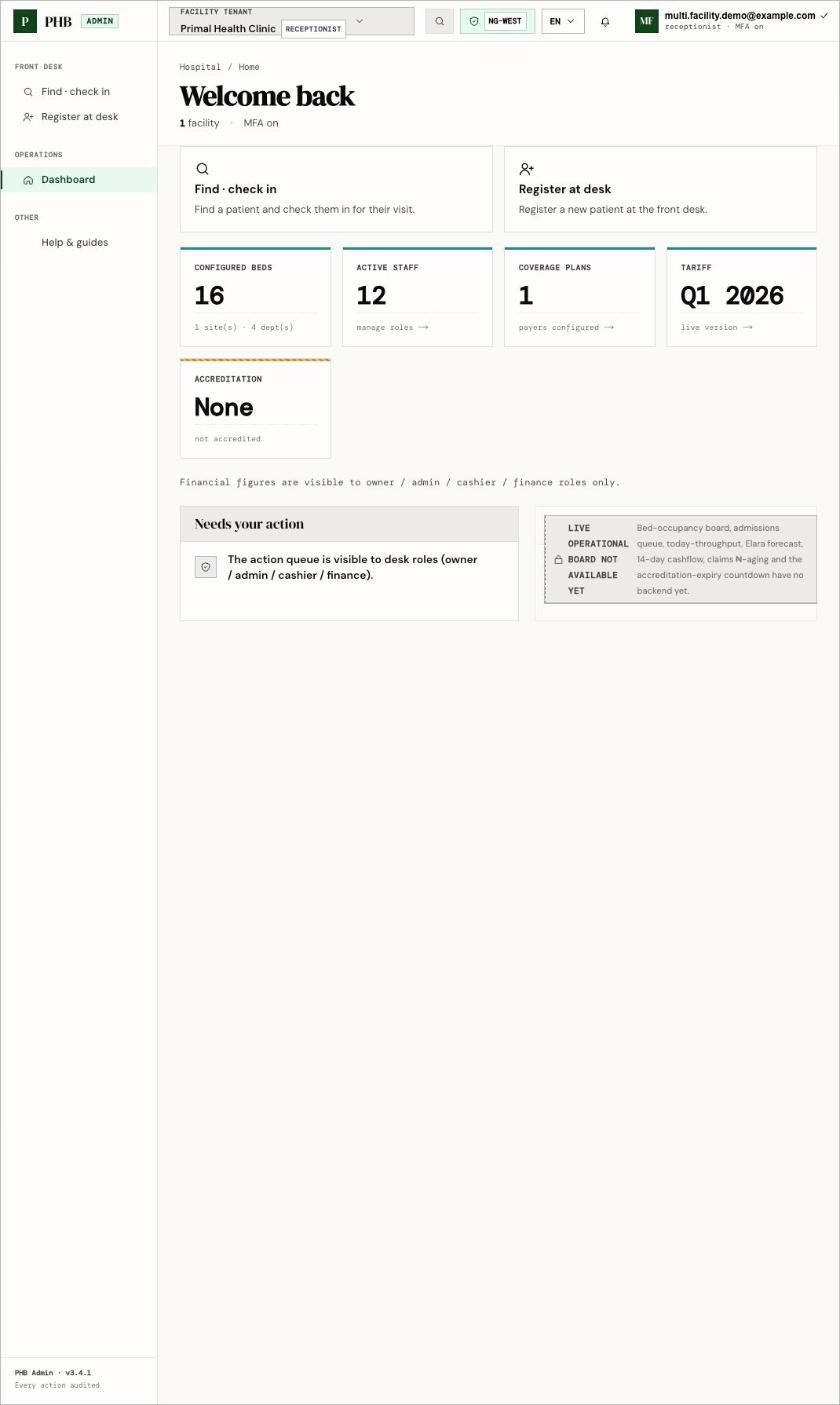
3. You land on `/hospital`. Click **Find · check in** or **Register at desk**.
 ## Your screen
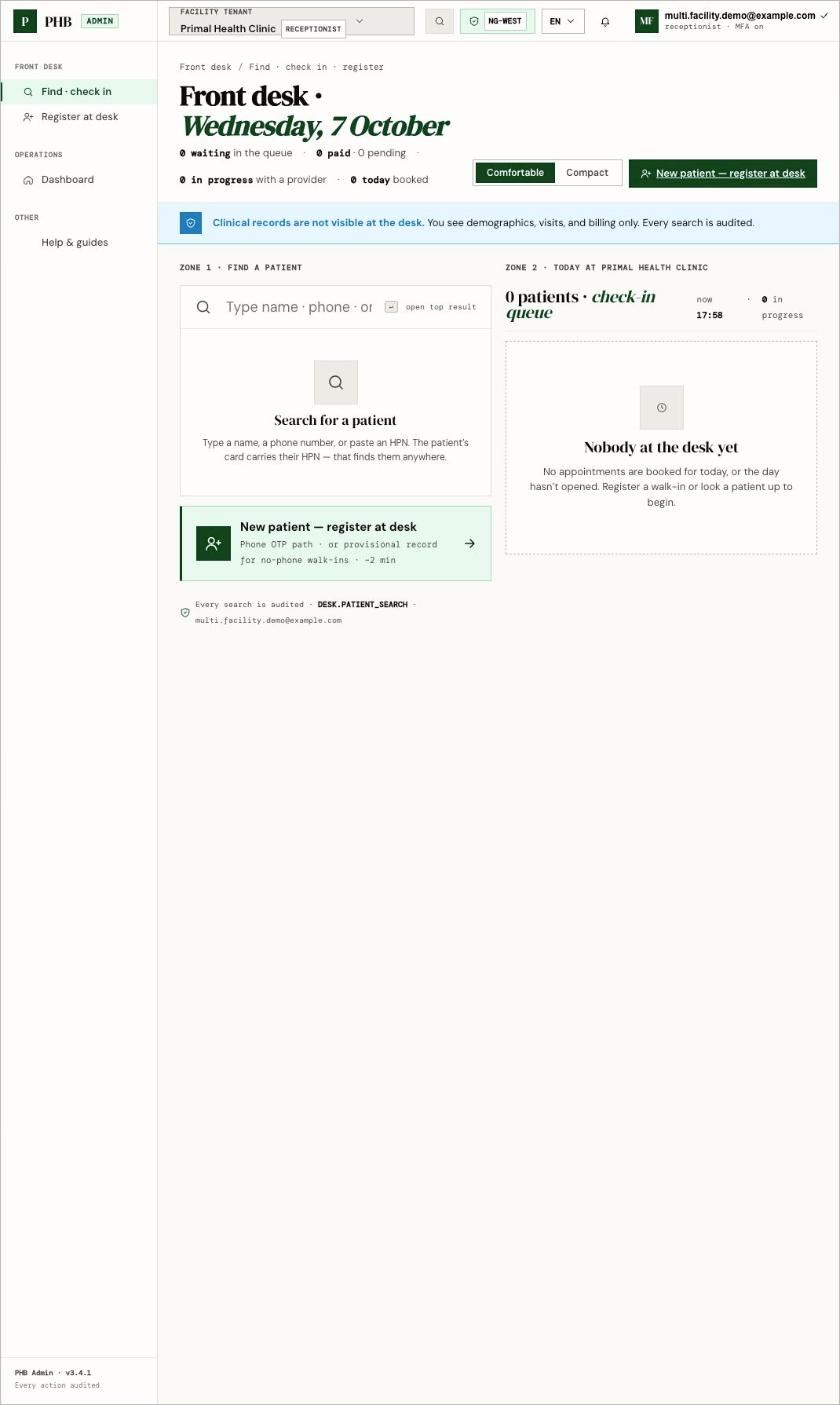 The **Front desk** page (`/hospital/desk`) has two zones:
* **Zone 1 · Find a patient**: search by name, phone or HPN.
* **Today**: the check-in queue for your facility.
Your left sidebar shows only what your role can use. You see **Find · check in** and **Register at desk** under Front desk.
Clinical records are not visible at the desk. You see names, contact details, visits and billing state. Every search you make is recorded.
## What you can do here
Find a patient and check in a booked visit.
Create a new record with a phone code, or a provisional one.
Find the HPN of a patient who forgot it.
Start a visit for someone without a booking.
Add a phone or verify a NIN later.
## Workflows you are part of
* [Walk-in visit](/workflows/walk-in-visit)
* [Booked appointment](/workflows/booked-appointment)
* [Patient without a phone](/workflows/patient-without-a-phone)
## When something goes wrong
* [Why can't I...?](/troubleshooting/why-cant-i)
* [Access denied and missing menus](/troubleshooting/access-denied-and-missing-menus)
* [Feature status](/reference/feature-status)
* In the app, open **Help & guides** for the desk walk-throughs.
This documentation is built and hosted on [Mintlify](https://mintlify.com), a developer documentation platform.
The **Front desk** page (`/hospital/desk`) has two zones:
* **Zone 1 · Find a patient**: search by name, phone or HPN.
* **Today**: the check-in queue for your facility.
Your left sidebar shows only what your role can use. You see **Find · check in** and **Register at desk** under Front desk.
Clinical records are not visible at the desk. You see names, contact details, visits and billing state. Every search you make is recorded.
## What you can do here
Find a patient and check in a booked visit.
Create a new record with a phone code, or a provisional one.
Find the HPN of a patient who forgot it.
Start a visit for someone without a booking.
Add a phone or verify a NIN later.
## Workflows you are part of
* [Walk-in visit](/workflows/walk-in-visit)
* [Booked appointment](/workflows/booked-appointment)
* [Patient without a phone](/workflows/patient-without-a-phone)
## When something goes wrong
* [Why can't I...?](/troubleshooting/why-cant-i)
* [Access denied and missing menus](/troubleshooting/access-denied-and-missing-menus)
* [Feature status](/reference/feature-status)
* In the app, open **Help & guides** for the desk walk-throughs.
This documentation is built and hosted on [Mintlify](https://mintlify.com), a developer documentation platform.