> ## Documentation Index
> Fetch the complete documentation index at: https://docs.phbhealth.com/llms.txt
> Use this file to discover all available pages before exploring further.
# Doctor
> Your guide as a doctor: what you need before you start, how to sign in, and your daily work in the clinical workspace.
This guide is for doctors. In PHB a doctor holds the facility role `clinician` **and** has a verified MDCN licence.
## Before you start
You need all of these:
* [ ] An invite from your hospital with the role `clinician`. See [Accept a staff invite](/account/accept-a-staff-invite).
* [ ] Your work email, password and authenticator app.
* [ ] A **verified MDCN licence**. You enter it during onboarding. See [Doctor onboarding](/guides/doctor/onboarding).
The role alone is not enough. Until your MDCN licence is verified, PHB sends you to onboarding instead of your workspace.
## Sign in
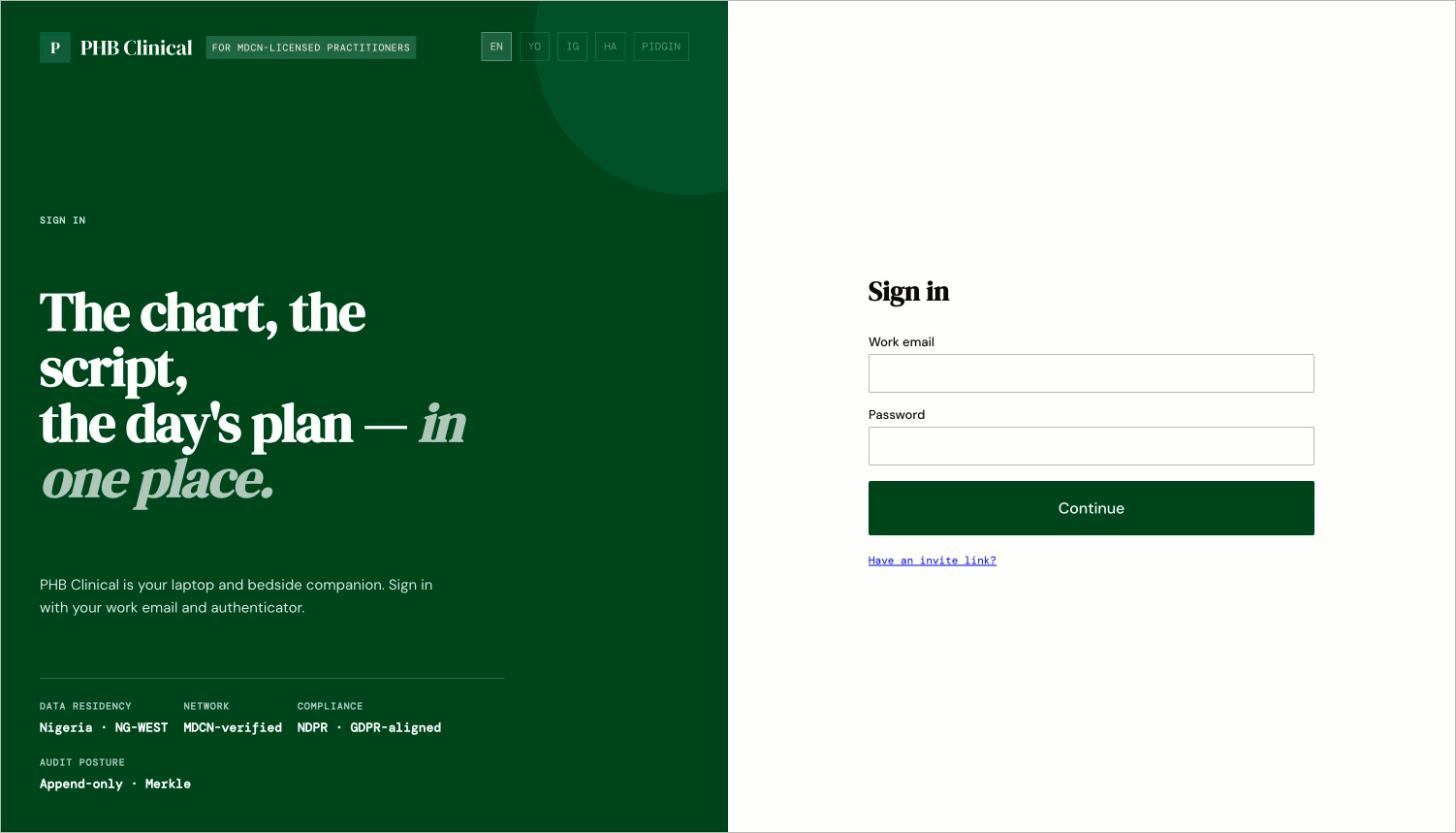 1. Go to `/clinical/login`. Enter your work email and password, then your authenticator code.
2. Where you land depends on your status:
| Your status | You land on |
| - | - |
| MDCN verified | `/clinical/today` |
| `clinician` role, licence not yet verified | `/clinical/onboarding` |
| No `clinician` role | `/hospital` |
## Your screen
The left sidebar has **Today**, **Patients**, **Schedule**, **Inbox**, **Encounter**, **Referrals**, **Tools**, **Earnings**, **Settings** and **Help & guides**. **Today's facility** is marked **soon**.
Press ⌘K (Ctrl+K on Windows) and type a full HPN to jump to a patient. The palette also has **Switch to My health** to see your own record as a patient.
## What you can do here
Your appointments and unsigned notes.
Look up a patient by HPN.
Consent, treatment basis and emergency override.
Write, sign and correct notes.
Prescribe with an allergy check.
Order tests and release results to patients.
Refill requests and lab results to review.
## Workflows you are part of
* [Walk-in visit](/workflows/walk-in-visit)
* [Booked appointment](/workflows/booked-appointment)
* [Lab test loop](/workflows/lab-test-loop)
## When something goes wrong
* [Why can't I...?](/troubleshooting/why-cant-i)
* [Feature status](/reference/feature-status)
* In the app, open **Help & guides** for the doctor walk-throughs.
This documentation is built and hosted on [Mintlify](https://mintlify.com), a developer documentation platform.
1. Go to `/clinical/login`. Enter your work email and password, then your authenticator code.
2. Where you land depends on your status:
| Your status | You land on |
| - | - |
| MDCN verified | `/clinical/today` |
| `clinician` role, licence not yet verified | `/clinical/onboarding` |
| No `clinician` role | `/hospital` |
## Your screen
The left sidebar has **Today**, **Patients**, **Schedule**, **Inbox**, **Encounter**, **Referrals**, **Tools**, **Earnings**, **Settings** and **Help & guides**. **Today's facility** is marked **soon**.
Press ⌘K (Ctrl+K on Windows) and type a full HPN to jump to a patient. The palette also has **Switch to My health** to see your own record as a patient.
## What you can do here
Your appointments and unsigned notes.
Look up a patient by HPN.
Consent, treatment basis and emergency override.
Write, sign and correct notes.
Prescribe with an allergy check.
Order tests and release results to patients.
Refill requests and lab results to review.
## Workflows you are part of
* [Walk-in visit](/workflows/walk-in-visit)
* [Booked appointment](/workflows/booked-appointment)
* [Lab test loop](/workflows/lab-test-loop)
## When something goes wrong
* [Why can't I...?](/troubleshooting/why-cant-i)
* [Feature status](/reference/feature-status)
* In the app, open **Help & guides** for the doctor walk-throughs.
This documentation is built and hosted on [Mintlify](https://mintlify.com), a developer documentation platform.